 P4 Software
/
logisticaHQ-en
P4 Software
/
logisticaHQ-en
P4 Software
/
logisticaHQ-en
P4 Software
/
logisticaHQ-en
A zone is an area of a warehouse whose bins all follow the same rules: whether stock sits loose on shelves or on pallets, which products and clients may go there, whether different products, lots or expiry dates may share a bin, and whether stock there can be picked at all. Zones are the most powerful part of the warehouse setup. Plan them with your LogisticaHQ partner before you create bins: a zone's rules decide what every operator's handheld will accept and refuse.
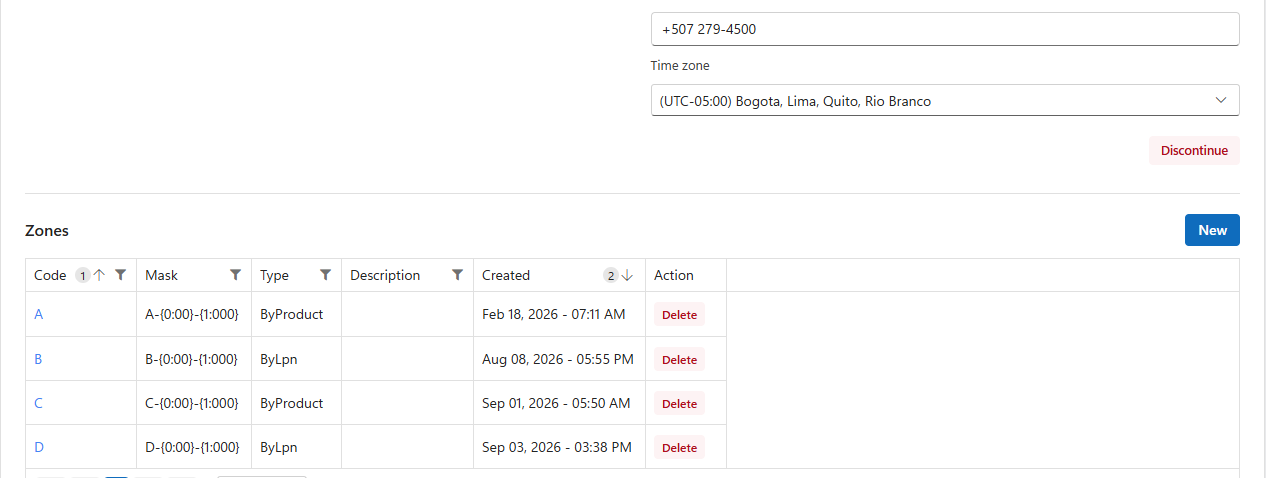
Click a zone's code to open it. Change the settings and click Update.
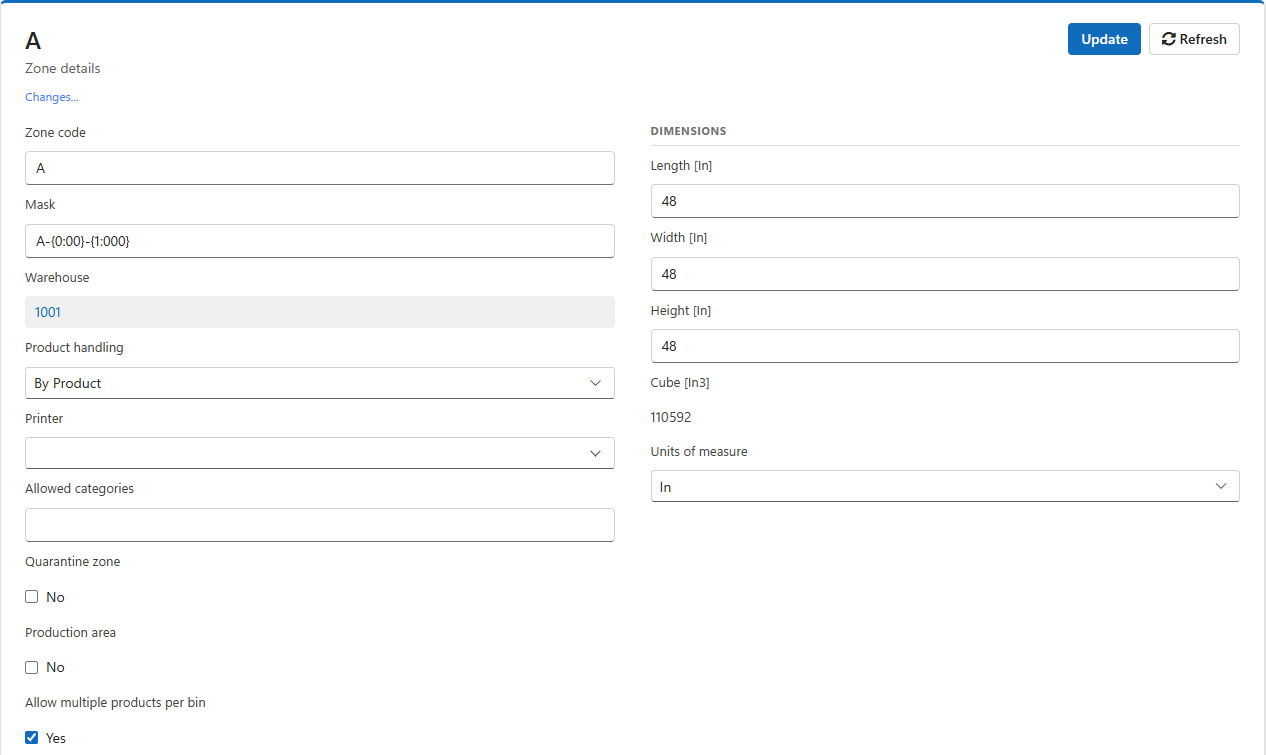
| Product handling | Meaning |
| By Product | Stock sits loose in bins: shelving, pick faces, cartons. This is where orders are normally picked from. |
| By LPN (bulk) | Stock sits on pallets or containers (LPNs) in the bins: racking, reserve, floor storage. |
The two never mix. The handheld refuses loose product into a By LPN bin (Zone [A] only allows Bulk handling), an LPN into a By Product bin (Cannot move LPN to a non Bulk bin), loose product into a bin that holds an LPN, and an LPN into a bin that holds loose product. Stock on LPNs is only picked when the allocation option Allocate bulk is on; otherwise it is replenished to By Product bins first.
| Setting | What it does |
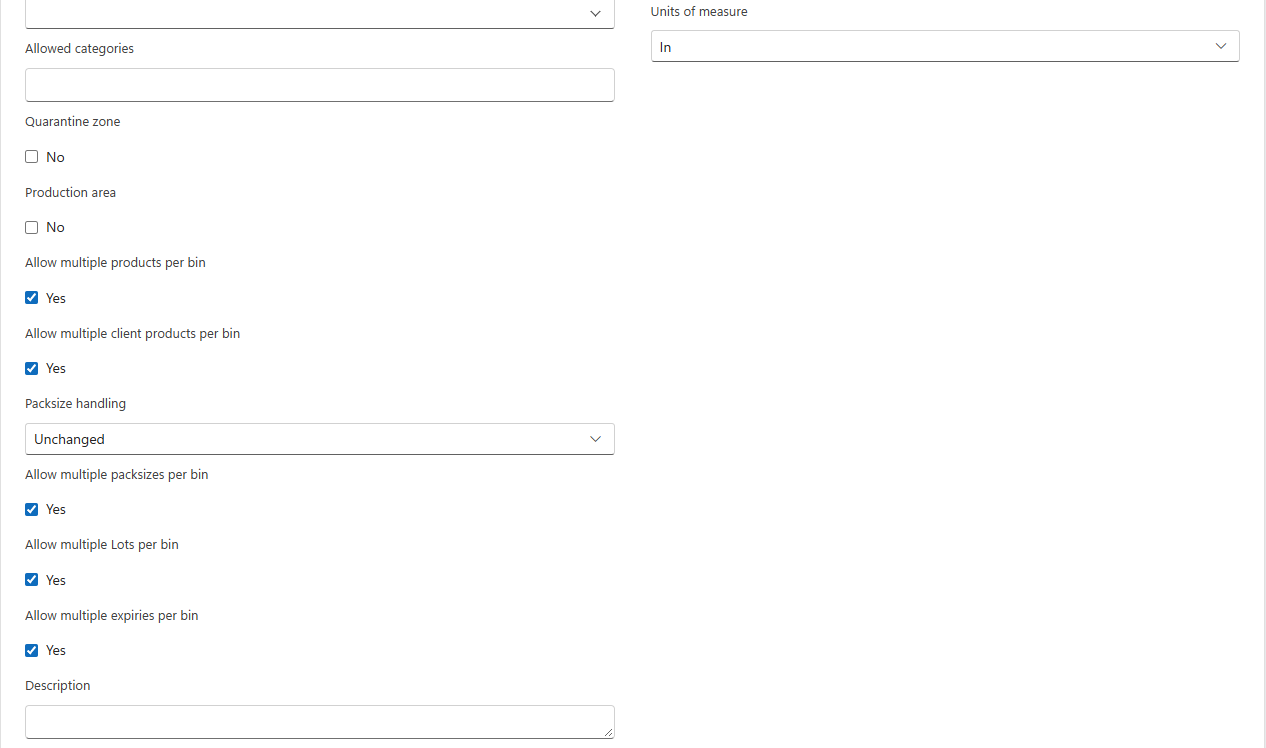
| Mask | The pattern proposed when you generate this zone's bins. See Bins. |
| Printer | The printer for carton labels when a wave is picked zone by zone. Without it, the company's default printer is used. |
| Allowed categories | Only products of these categories may be put in this zone, comma-separated, for example Frozen, Chilled. Anything else is refused: Cannot move product to [bin]. Category [X] is not allowed. Leave empty for any category. |
| Quarantine zone | Stock here is never allocated to orders, production or replenishment: it stays until someone moves it out. Use it for damaged, recalled or inspection stock. |
| Production area | The zone's bins are work areas where production orders are built. Their stock is never allocated to orders. See Production orders. |
| Production auto source | For a production area: a bin whose stock is offered automatically to production orders built here. Saved as soon as you choose it. |
| Allow multiple products per bin | When off, a bin holds one product at a time: Bin [X] cannot contain multiple products. |
| One bin per product | When on (only with one product per bin), a product may occupy only one bin of the zone; the handheld points the operator to it: Use Bin [Y] instead. |
| Dedicated product bins | When on, each bin belongs to one product: the first product put in a bin becomes its dedicated product, and bins can carry a minimum and maximum for replenishment. See Bins. |
| Allow multiple client products per bin | When off (the default), a bin never mixes the products of different 3PL clients. |
| Packsize handling | For pack size controlled products (By Product zones): Unchanged; Prevent eaches (only whole packs); Prevent packs (only single units); Convert packs to eaches (packs are stored as single units). |
| Allow multiple packsizes per bin | When off, a bin holds one pack size of a product. |
| Allow multiple Lots per bin | When off, a bin holds one lot of a lot-controlled product. |
| Allow multiple expiries per bin | When off, a bin holds one expiry date of an expiry-controlled product. Keeping one expiry per bin makes first-expired-first-out picking exact. |
| Allow multiple LPNs per bin | (By LPN zones) When off, a bin holds one pallet at a time. |
| Description | A note for people. |
| Dimensions | The typical bin's length, width and height, and the resulting cube. Informational: LogisticaHQ does not use them to limit what goes in a bin. |
The multiple-products, lots, expiries and pack size rules are not applied during a cycle count, so a count always records what is really there.
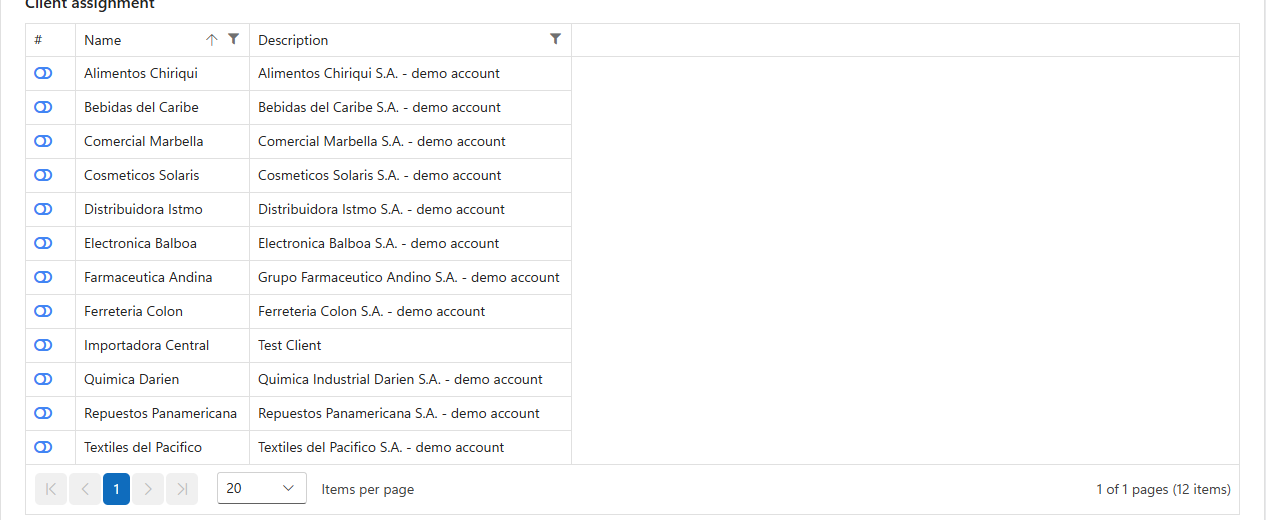
In a 3PL warehouse, the Client assignment list (administrators only) reserves the zone for one client: switch that client on. Only that client's products can then be put in the zone's bins: Bin is assigned to a different Client. The switch is saved at once; switch it off to open the zone to everyone again.
A bin follows its zone's rules unless it has its own setting. See Bins.
A user can be limited to certain zones on their profile. They are then refused anywhere else: User is not allowed to handle product in zone [Z]. See Users.
Click Delete in the zone's row and confirm. A zone that still holds stock cannot be deleted: Cannot delete, contains inventory.
Was this page helpful?