 P4 Software
/
logisticaHQ-en
P4 Software
/
logisticaHQ-en
P4 Software
/
logisticaHQ-en
P4 Software
/
logisticaHQ-en
The Logs screen collects the technical errors LogisticaHQ records: problems in someone's browser, on a handheld or on the server, each with the time, the version and the details a support engineer needs. You normally open it when something went wrong and your LogisticaHQ partner asks for the log, or to check whether an error a user reported was recorded.
Open Setup > System > Logs. The newest entries are at the top.
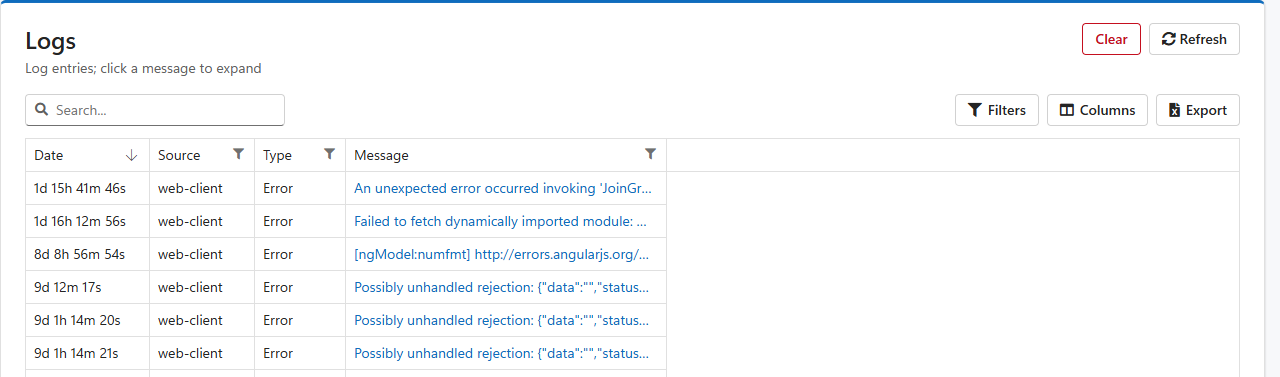
| Column | Meaning |
| Date | How long ago the entry was recorded. |
| Source | Where it happened, for example web-client for the web application in someone's browser. |
| Type | The kind of entry, for example Error. |
| Message | A summary of what happened. Click it to see the whole entry. |
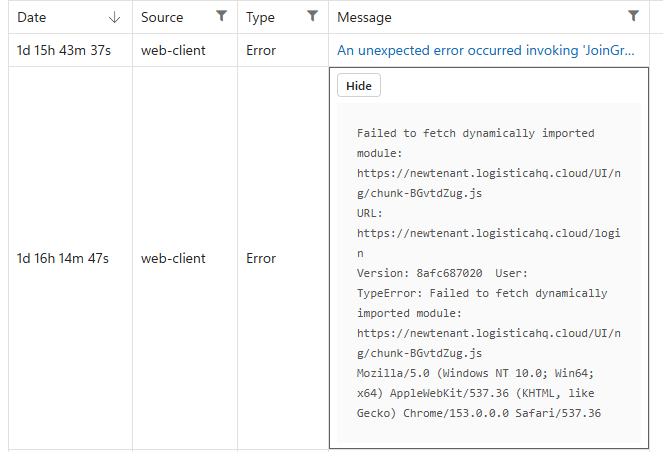
The full entry shows the error, the page address where it happened, the LogisticaHQ version, the user and the browser or device. Click Hide to fold it again.
Clear deletes every entry. LogisticaHQ asks you to confirm first, and the entries cannot be brought back. Export the log before you clear it if anyone may still need it.
Was this page helpful?