 P4 Software
/
logisticaHQ-en
P4 Software
/
logisticaHQ-en
P4 Software
/
logisticaHQ-en
P4 Software
/
logisticaHQ-en
The search box at the top of every screen finds anything in LogisticaHQ from one place: a menu entry, a setting, or a record such as a product, an order or an invoice. Press Ctrl+K (Cmd+K on a Mac) from anywhere to jump to it, then start typing.
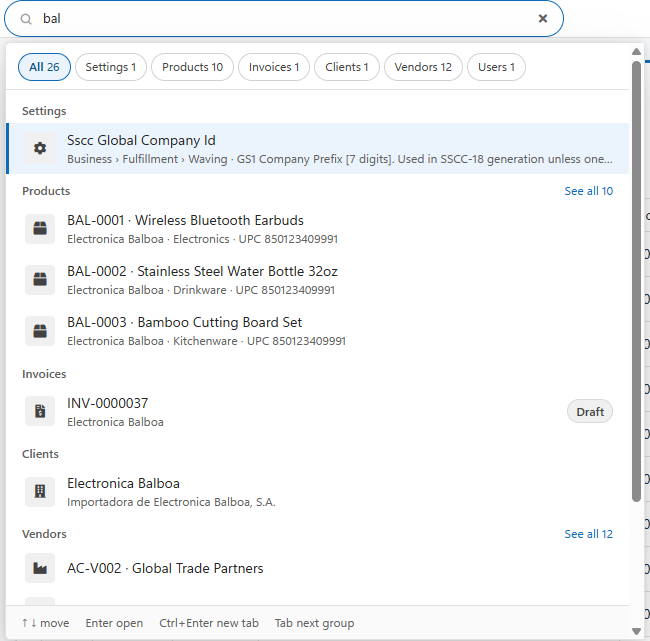
You only see what you are allowed to open: if your role cannot open a kind of record, that group simply does not appear.
Type a prefix and a colon before your search to look in one group only:
| Prefix | Searches | Example |
| product: or sku: | Products | sku:AND-0004 |
| stock: | Inventory | stock:AND-0004 |
| pt:, pick: or order: | Pick tickets | pt:1045 |
| po: | Purchase orders | po:1001 |
| inv: or invoice: | Invoices | inv:0000037 |
| ret: or return: | Returns | ret:12 |
| lpn: | LPNs | lpn:0000123 |
| bin: | Bins | bin:A-01 |
| cust: or Customer: | Customers | cust:ACME |
| client: | Clients | client:Balboa |
| vendor: | Vendors | vendor:Global |
| user: | Users | user:maria |
| Key | What it does |
| Ctrl+K / Cmd+K | Go to the search box from anywhere |
| Up / Down | Move through the results |
| Enter | Open the highlighted result (the first one if none is highlighted) |
| Ctrl+Enter | Open the result in a new browser tab |
| Tab / Shift+Tab | Jump to the next or previous group |
| Escape | Clear the search and close the panel |
| Symptom | Likely cause | What to do |
| Only menu and settings results appear | Fewer than 2 characters typed | Type at least 2 characters to search records. |
| A kind of record never appears | Your role cannot open that list | Ask your administrator for access to that screen. |
| An Inventory search finds nothing | Inventory matches the exact SKU only | Type the full SKU, for example stock:AND-0004. |
Was this page helpful?