 P4 Software
/
logisticaHQ-en
P4 Software
/
logisticaHQ-en
P4 Software
/
logisticaHQ-en
P4 Software
/
logisticaHQ-en
On this screen you will see a list of invoices generated by the LogisticaHQ system. On the right side you will see an excel document and a pdf. In the event you have setup the LogisticaHQ system to send emails, these files will be sent to the 3PL client when they are posted.
Invoices are in draft unless Auto Post is turned on, after reviewing the invoice select the box in the left and click post as shown in the Photo below.
This page covers the life of an invoice: generating it, reviewing and correcting it, posting it, and sending it to the client.
You can start from the profile list or from the profile itself:
Then:
To date is the first day after the period. To bill all of September 2026, enter From 2026-09-01 and To date 2026-10-01.
A few things to know:
Setup > 3PL > Invoices lists every client's invoices. Each profile also shows its own invoices in its Invoices section. The grid shows:
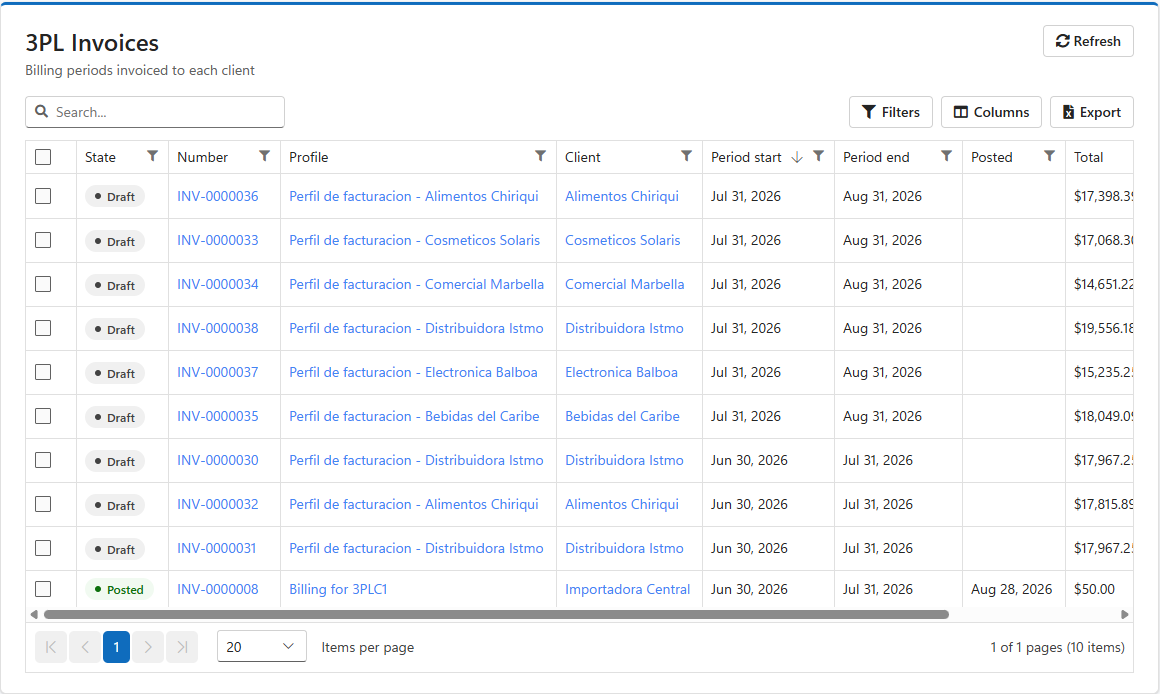
Click an invoice number to open it.
The invoice screen has these sections:
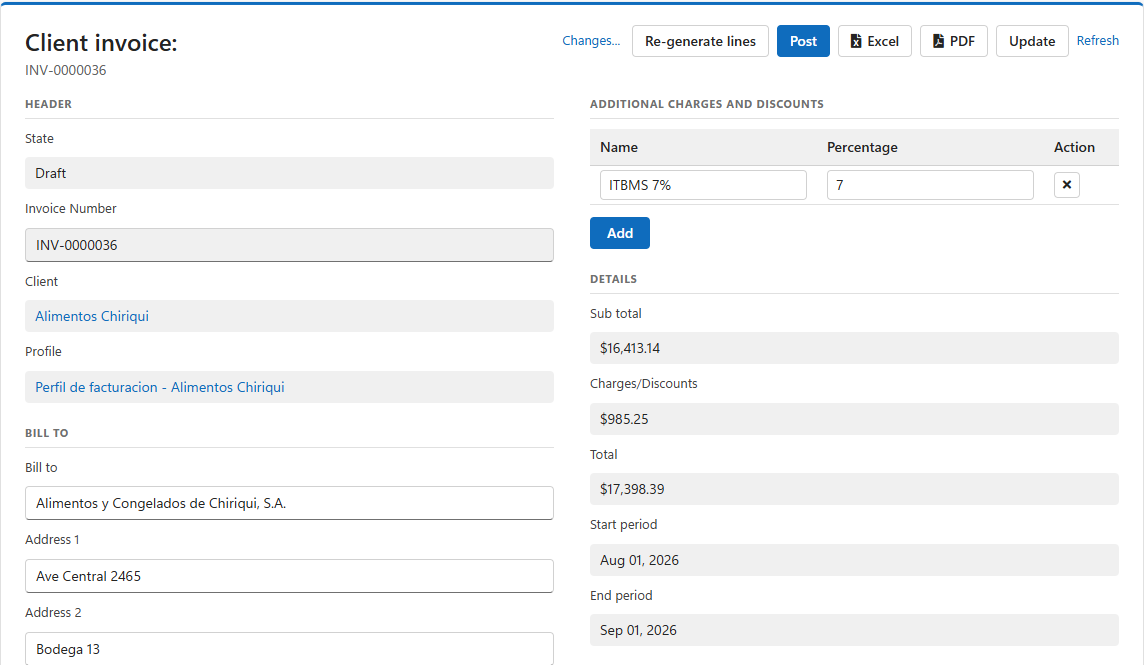
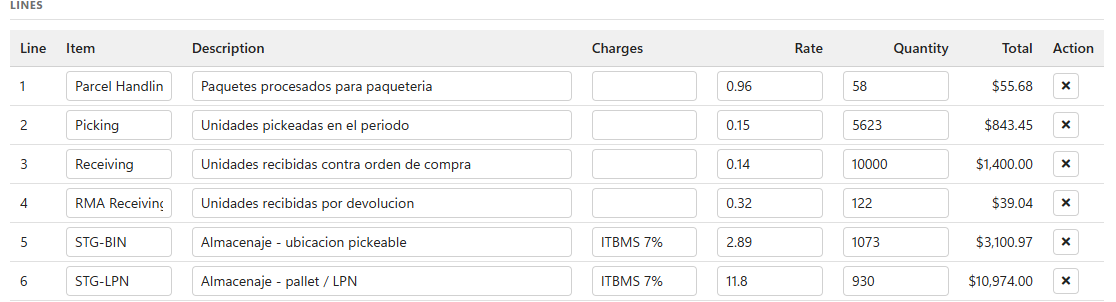
While the invoice is a Draft, you can change the Bill to fields, the charges and the lines. You can edit any line, add lines with Add, or remove lines. Click Update to save.
To add a tax to a line you added by hand, type the charge name, for example ITBMS, in the line's Charges column.
The Changes... link shows the history of changes to the invoice.
Re-generate lines is available on Draft invoices. It deletes all the invoice's lines and runs the profile's enabled rules again.
| It does | It does not |
| Apply rule changes made since the invoice was created: new rates, edited queries, and rules added, removed, enabled or disabled. | Re-read warehouse activity. Rules use the storage and service records saved when the invoice was created. Activity recorded later, or records missing because capture was off, is not picked up. |
| Use the invoice's own additional charges. | Keep lines you edited or added by hand. They are replaced. |
If you need to pick up new activity, or you turned on record capture after creating the invoice, do this instead:
Each rule runs on its own. If one rule fails, for example because its query has an error:
To recover:
Posting makes an invoice final. A posted invoice cannot be edited, re-generated or deleted, and it cannot be returned to Draft. Posting also makes the invoice visible to the client in the portal.
There are two ways to post:
If an invoice is wrong after posting, issue a correcting invoice or adjust the next period's invoice.
Tick one or more Draft invoices in an invoice grid and click Delete. Posted invoices cannot be deleted.
If you delete a billing profile, its invoices are kept.
Every invoice has PDF and Excel actions. You find them in the invoice grids and at the top of the invoice screen.
The Email action appears on posted invoices in the invoice grids. It does the following:
When it works, you see "Email to [address] sent!".
You can use these placeholders in the subject and body:
| Placeholder | Replaced with |
| @InvoiceNumber | The invoice number, for example INV-0000027 |
| @Start | The period start date |
| @End | The period end date (the first day after the period) |
| @BillToName | The Bill to name |
| @Total, @SubTotal | The invoice amounts |
| @<field> | Any other invoice field, written as @ followed by the field name, for example @BillToCity or @FromName |
For the period dates, use @Start and @End, not the field names @StartPeriod and @EndPeriod.
Example subject: Invoice @InvoiceNumber - @BillToName - period @Start to @End
Recurring profiles with Auto email invoices send invoices automatically after the scheduled job creates them. Contact support if scheduled invoice emails are not received.
Portal users with access to invoices have an Invoices page in the client portal.
Post the invoice before you tell the client it is ready.
| Symptom or message | Cause and fix |
| A Storage rule adds no line. | Generate Storage Records was off when the invoice was created, or the client had no stock in the rule's zones or products. Turn the setting on, delete the Draft and generate a new invoice. |
| A Service rule adds no line. | The query returned no rows with a quantity above zero. If the query reads BillingServiceRecords, check that Generate Service Records was on when the invoice was created. Test the query in Setup > System > Query builder (see the 3PL Billing Query Library). |
| "Profile [...] does not have any rules" | Add at least one rule to the profile. |
| "3PL invoice generation already running, please wait..." | Another invoice is being generated. Wait and try again. |
| "Invalid date range. 'To' must be greater than 'From'" | Correct the dates. To date is the first day after the period. |
| "Excessive number of history records" | The client has too much history for the period. Generate shorter periods. |
| "Invalid Length Unit of Measure" | Set Report Length Unit Of Measure and Report Weight Unit Of Measure under Business - Products in the configuration. |
| "Must declare the scalar variable ..." | The query uses a variable other than @Id and @Rate, such as @ClientId. Only those two are provided. Join ClientInvoices on @Id for the client and period. |
| The invoice has only some of the expected lines, and an error was shown. | One rule failed and the others succeeded. Correct the rule, then click Re-generate lines. |
| ITBMS is not applied to a line. | The line does not name the charge, or the name does not match a charge on the invoice. Check the rule's Additional Charges or the query's AdditionalCharges column. Also check the invoice's Additional charges and discounts. |
| A new rate does not show on an existing Draft. | Click Re-generate lines on the invoice. |
| There is no Email action. | The invoice is a Draft. Post it first. |
| "Email is not setup on Client" | Enter the client's Email under Setup > 3PL > Clients. |
| "Email Subject is not setup in configuration" or "Email Body is not setup" | Fill in Invoice Email Subject and Invoice Email Body under Business - Multi Client. |
| The client cannot see an invoice in the portal. | The invoice is still a Draft, or the portal user does not have access to invoices. |
| A posted invoice needs a correction. | Posting cannot be undone. Issue a correcting invoice or adjust the next period. |
| Scheduled invoice emails are not received. | Contact support. |
Was this page helpful?