 P4 Software
/
logisticaHQ-en
P4 Software
/
logisticaHQ-en
P4 Software
/
logisticaHQ-en
P4 Software
/
logisticaHQ-en
A webhook makes LogisticaHQ tell another system, such as your ERP, e-commerce platform or accounting software, the moment something important changes: an order is shipped, a purchase order is received, a product's dimensions change. Instead of the other system asking LogisticaHQ again and again whether anything is new, LogisticaHQ sends it a message at the address you give, within seconds of the change.
Setting up a webhook is technical work, usually done by your IT team or LogisticaHQ partner together with the developers of the receiving system. Only administrators can create, change or delete webhooks.
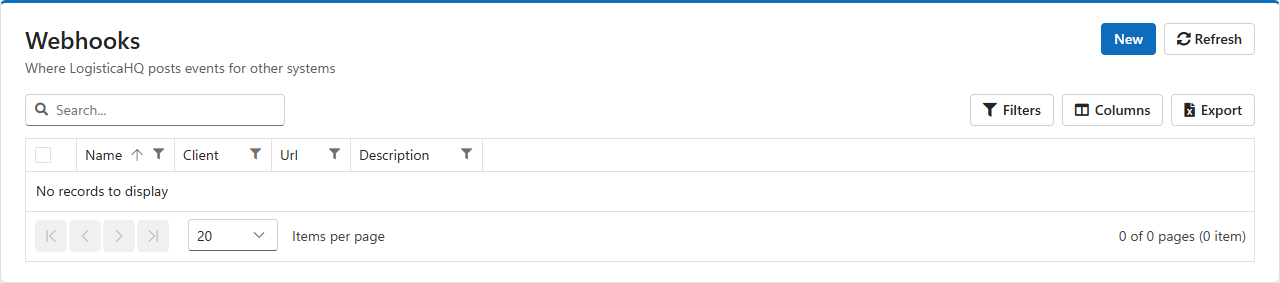
Open Setup > System > Webhooks. The list shows each webhook's name, client, address and description. Click a name to change a webhook. Tick webhooks and click Delete on the selection bar to remove them.
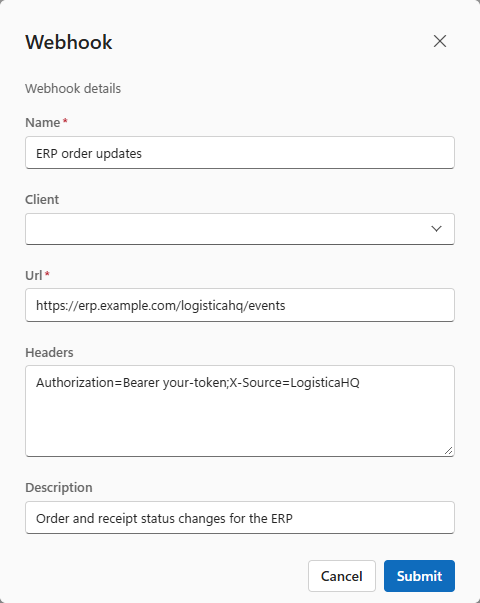
| Field | What to enter |
| Name | A name that says what the webhook is for. Required. |
| Client | Leave empty to receive the events of every client and of records that belong to no client. Choose a client to receive only that client's events, for example to send a 3PL client's order updates to that client's own system. |
| Url | The address of the receiving system, which must accept an HTTP POST. Use an https:// address so the messages and headers travel encrypted. Required. |
| Headers | Extra HTTP headers to send with every message, usually a key or token the receiving system checks to be sure the message comes from you. Write each header as Name=Value and separate headers with semicolons, for example Authorization=Bearer your-token;X-Source=LogisticaHQ. |
| Description | A note for administrators, such as who owns the receiving system. |
| Record | A message is sent when this changes |
| Pick tickets | The state (for example Waved, Picked, Shipped, Closed), the upload date, and the order's tracked location during delivery. |
| Purchase orders | The state and the upload date. |
| Customer returns | The state and the upload date. |
| Production orders | The state and the upload date. |
| Surgery cases | The state, the dispatch date and the completion date. |
| Products and pack sizes | Dimensions, weight, unit cost and unit of measure, and a pack size's number of units. |
| Users | The location tracked from their handheld. |
A record that belongs to a client, such as a client's pick ticket, goes to the webhooks without a client and to that client's webhooks.
Each message is an HTTP POST with a JSON body that says which record changed, how, by whom and when, and lists every field that changed with its old and new value:
{
  "ObjectId": "1829f328-30d9-4e93-b05b-06a4ef01133f",
  "ObjectType": "PickTicket",
  "ReferenceNumber": "SP-0019261",
  "Tenant": "newtenant",
  "EventType": "Modified",
  "Timestamp": "2026-09-26T14:05:12Z",
  "UserId": "...",
  "Changes": [
    { "PropertyName": "PickTicketState", "OldValue": "Picked", "NewValue": "Shipped" }
  ]
}
EventType is Added, Modified or Deleted. The receiving system can use ObjectId or ReferenceNumber to read the full record through the REST API.
The receiving system must answer with a success status (2xx). When it does not, or cannot be reached, LogisticaHQ records the failure, with the status and the answer it received, in Logs, and moves on. Failed messages are not sent again. Build the receiving system to catch up on its own. For example, when it starts it can ask the REST API for orders in the state it is waiting for, so nothing is missed while it was down.
Was this page helpful?