 P4 Software
/
logisticaHQ-en
P4 Software
/
logisticaHQ-en
P4 Software
/
logisticaHQ-en
P4 Software
/
logisticaHQ-en
A warehouse is one physical site. Everything stored in LogisticaHQ sits in a warehouse, inside a zone, in a bin. Most companies have one warehouse; a company with several sites, or a separate returns or quarantine building, creates one for each.
If LogisticaHQ is connected to an ERP or another system, the warehouse codes must match the codes that system uses. Agree them with your LogisticaHQ partner before you start.
Open Setup > Warehouse > Warehouses.
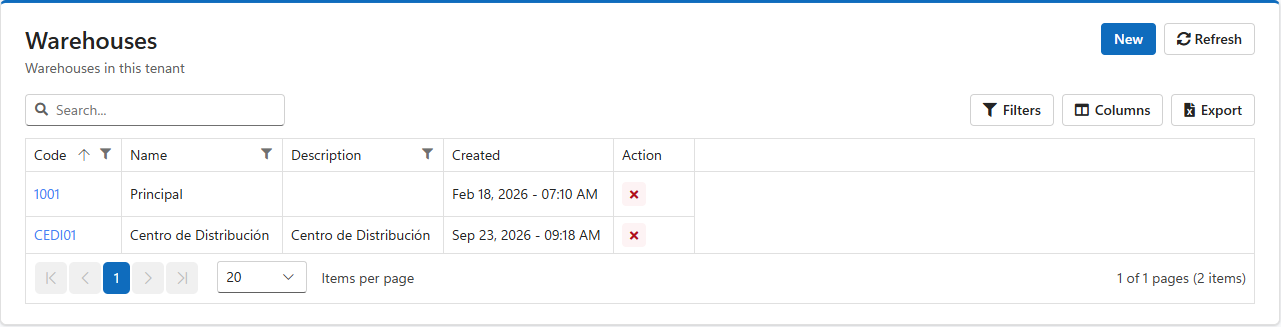
The code identifies the warehouse everywhere, on screens, documents, labels and in integrations, and cannot be changed once the warehouse exists. Keep it short, for example 1001 or MIA.
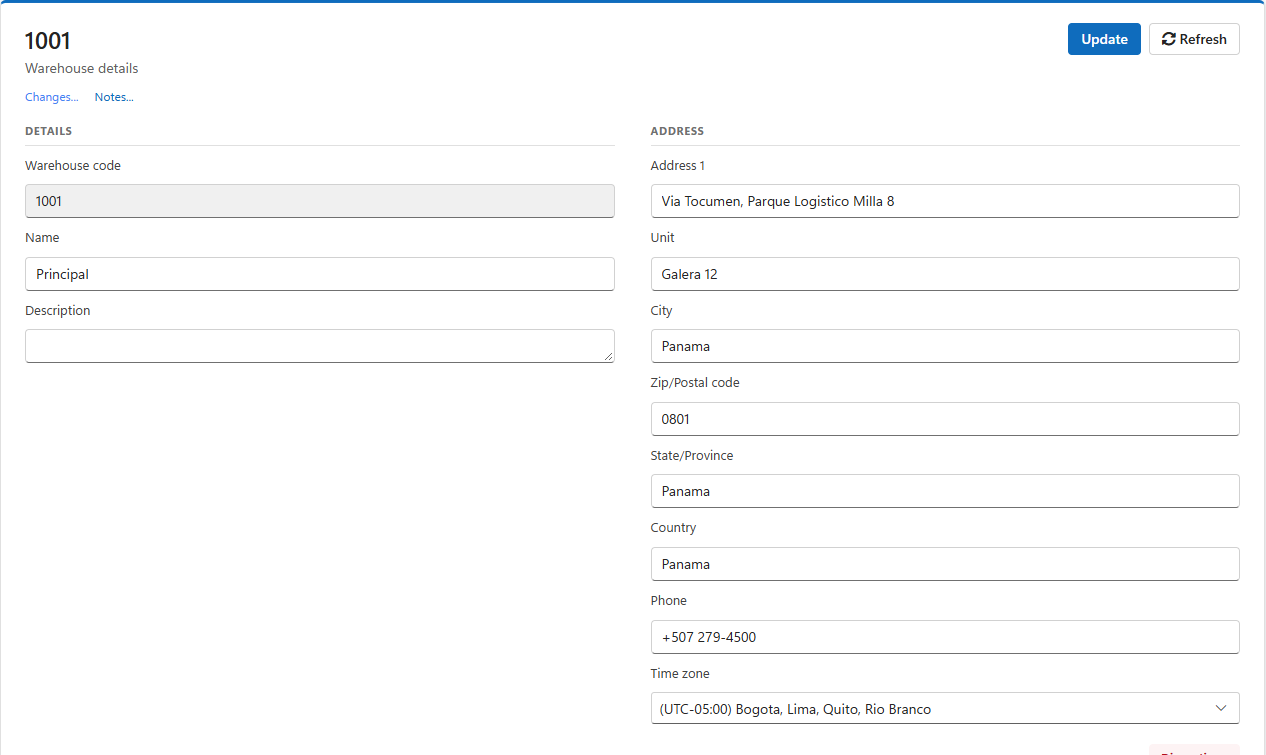
| Field | Use |
| Warehouse code | Fixed when the warehouse is created. |
| Name, Description | How the warehouse is shown to people. |
| Address 1, Unit, City, Zip/Postal code, State/Province, Country, Phone | The site's address and phone, available to integrations through the REST API. |
| Time zone | The site's time zone, for reference and integrations. Dates on screen follow each user's own time zone. |
Change the fields and click Update. Changes... shows who changed what; Notes... keeps notes about the site.
The Zones section at the bottom lists the warehouse's zones and is where new zones are created. See Zones.
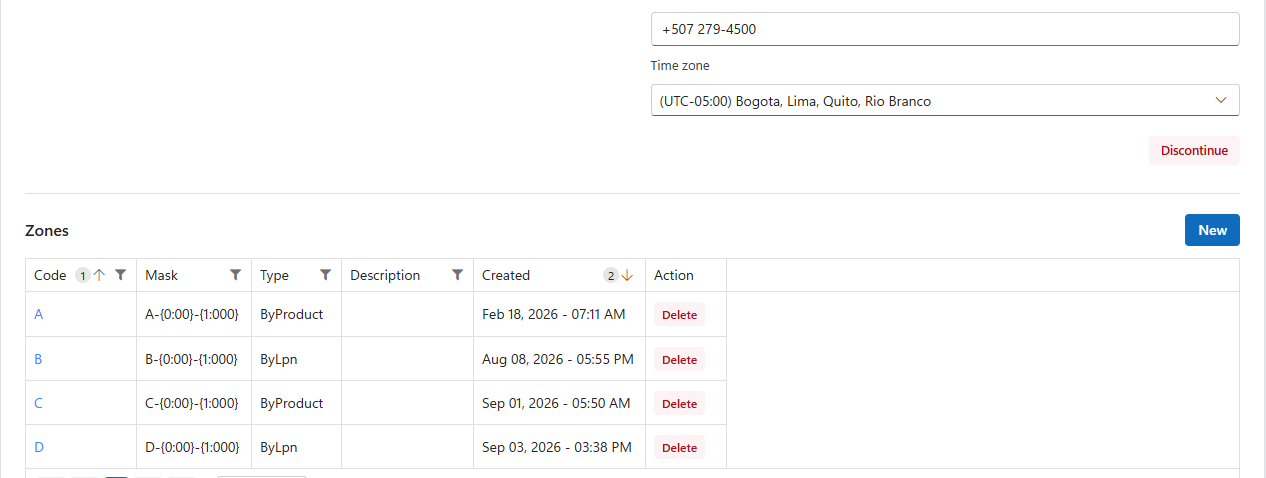
When a site closes, click Discontinue at the bottom of its details and confirm. A discontinued warehouse disappears from lists and pickers; its history is kept. This cannot be undone. A warehouse with open work cannot be discontinued: finish or cancel its open purchase orders, pick tickets, production orders, customer returns and truck loads first.
Deleting is only for a warehouse created by mistake. Click the red × in the list: LogisticaHQ warns that the operation cannot be undone and asks you to type the warehouse code to confirm, then asks again. A warehouse that has zones, dock doors or any transactions cannot be deleted; discontinue it instead.
Was this page helpful?