 P4 Software
/
logisticaHQ-en
P4 Software
/
logisticaHQ-en
P4 Software
/
logisticaHQ-en
P4 Software
/
logisticaHQ-en
The User sessions screen shows everyone signed in to LogisticaHQ right now: who they are, whether they are on the web, a handheld or another system, where they connected from, when they signed in and when they last did something. Use it to see who is working, to message someone, or to sign a user out, for example when a handheld was left signed in or a session must end before a change.
Open Setup > System > User sessions.
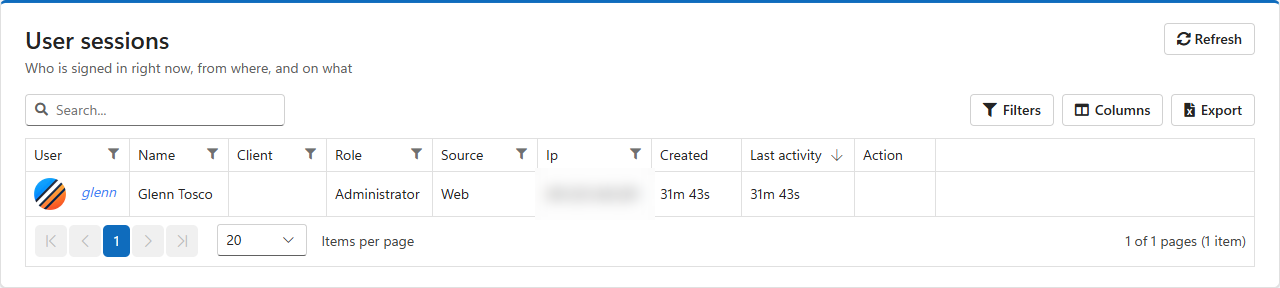
| Column | Meaning |
| User, Name | Who is signed in. |
| Client | For a client user, the client they belong to. |
| Role | Administrator, User, PortalUser or FieldUser. |
| Source | What they are signed in with: the Web application, a Handheld, or another channel such as the API. |
| Ip | The internet address the session connects from. |
| Created | How long ago they signed in. |
| Last activity | How long ago they last did something. The list is sorted by this column, most recent first. |
Each row, except your own, has two buttons in the Action column:
Click Refresh to reload the list.
The number of people who can be signed in at the same time is limited by your license. See Tenant.
Was this page helpful?