 P4 Software
/
logisticaHQ-en
P4 Software
/
logisticaHQ-en
P4 Software
/
logisticaHQ-en
P4 Software
/
logisticaHQ-en
In this process you will pull the finished good from the production line to be placed into Inventory.
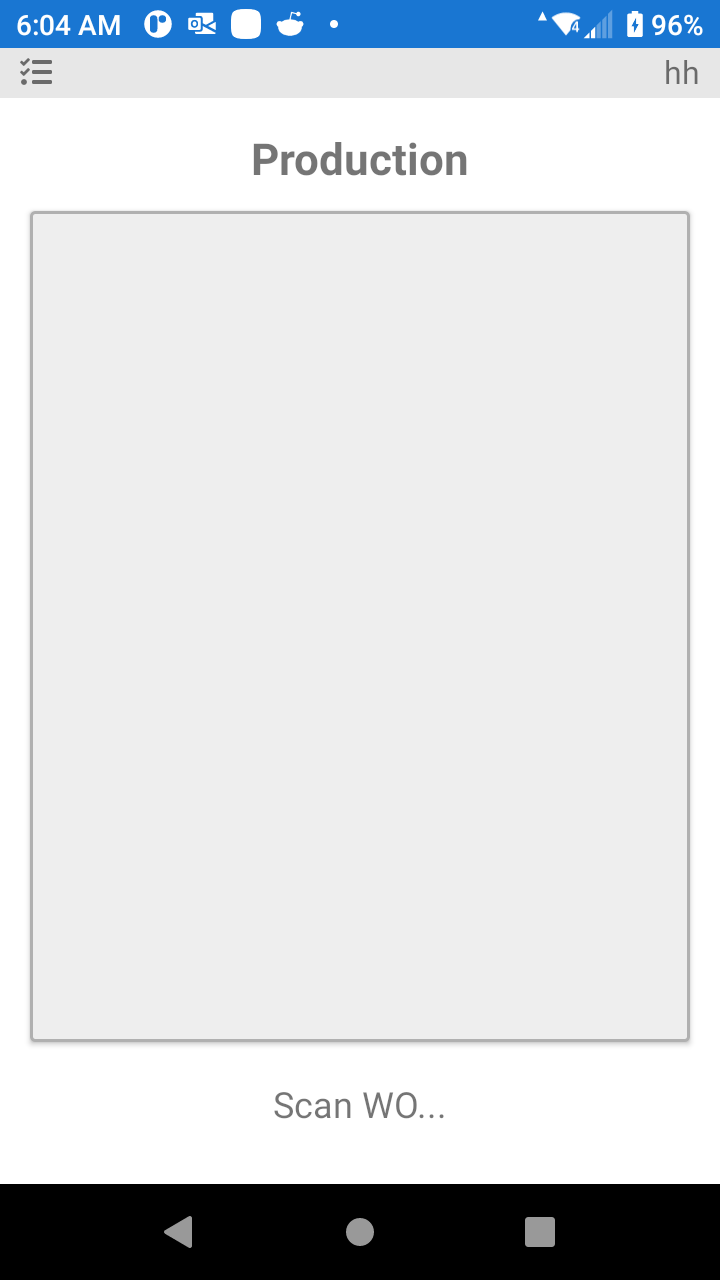
To begin the Production Pull process, scan the Work Order Number into the screen below.
On the screen below you will be asked for the quantity of finished goods you are removing from the production line and moving to the Warehouse.
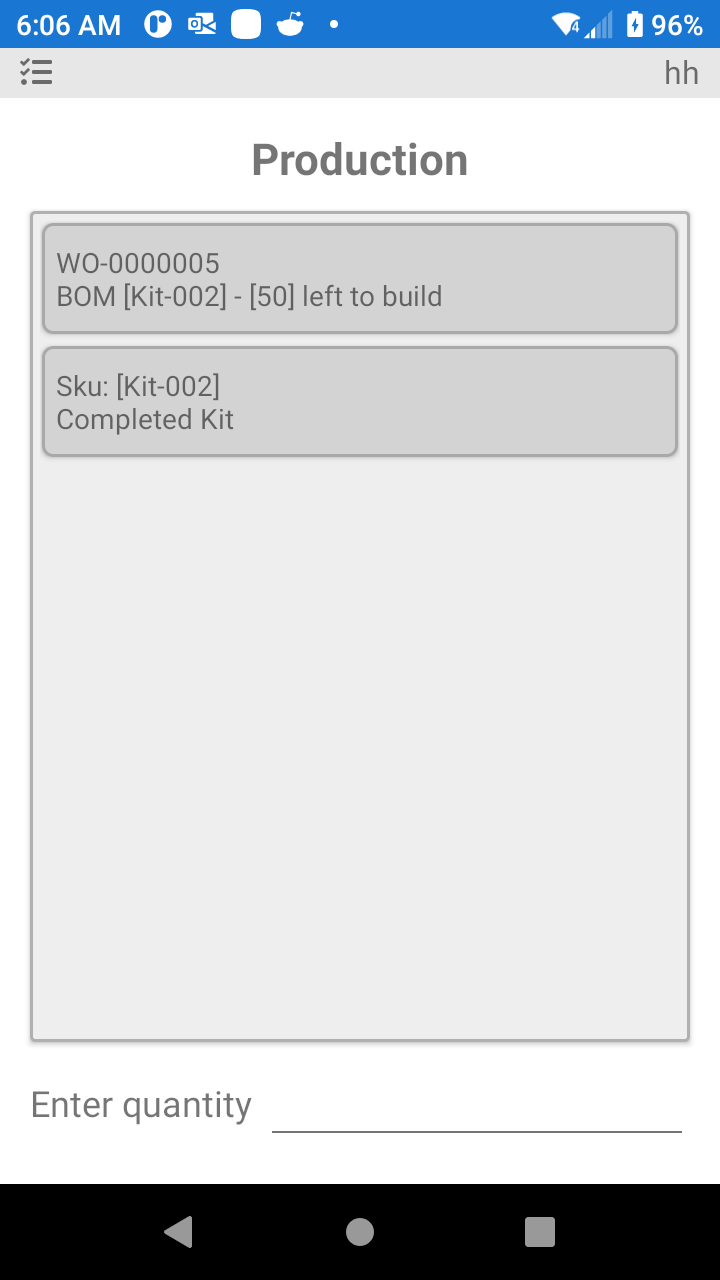
Enter only the quantity you are physically removing to the storage area.
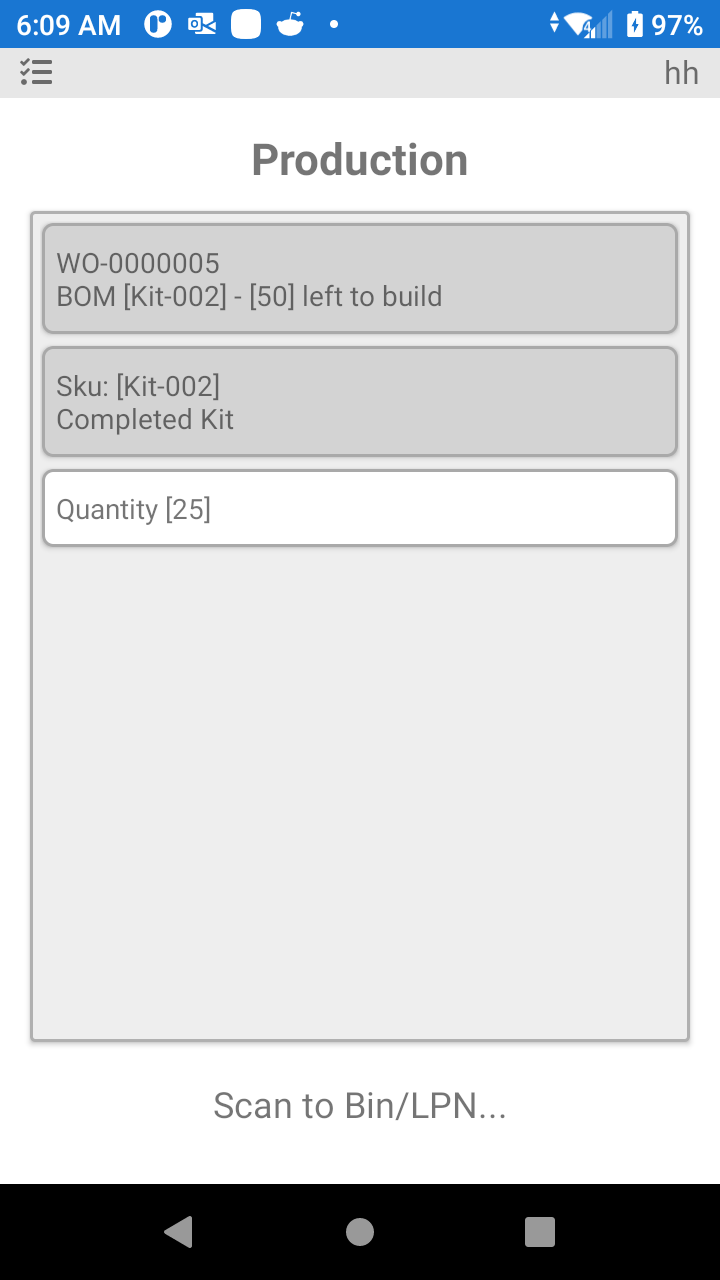
If you are moving a pallet that contains twenty-five boxes only enter twenty-five in the screen above.
After entering twenty-five in the screen above you will be asked what bin you will use to store the finished good, scan the bin location then return to the production area for the second pallet to complete the example above.
Was this page helpful?