 P4 Software
/
logisticaHQ-en
P4 Software
/
logisticaHQ-en
P4 Software
/
logisticaHQ-en
P4 Software
/
logisticaHQ-en
LogisticaHQ is a cloud warehouse management system. It runs every step of a warehouse, from the purchase order that brings goods in to the truck that takes them out: receiving, put-away, storage, replenishment, order picking, packing, quality control, shipping, returns, production and inventory control. It serves single warehouses, multi-warehouse companies and third-party logistics (3PL) providers that store and ship for many clients, and it bills those clients for the work.
This page explains who uses LogisticaHQ, how the screen is organised and where each part of the documentation fits. If you are setting up a new warehouse, continue with the First-time setup checklist.
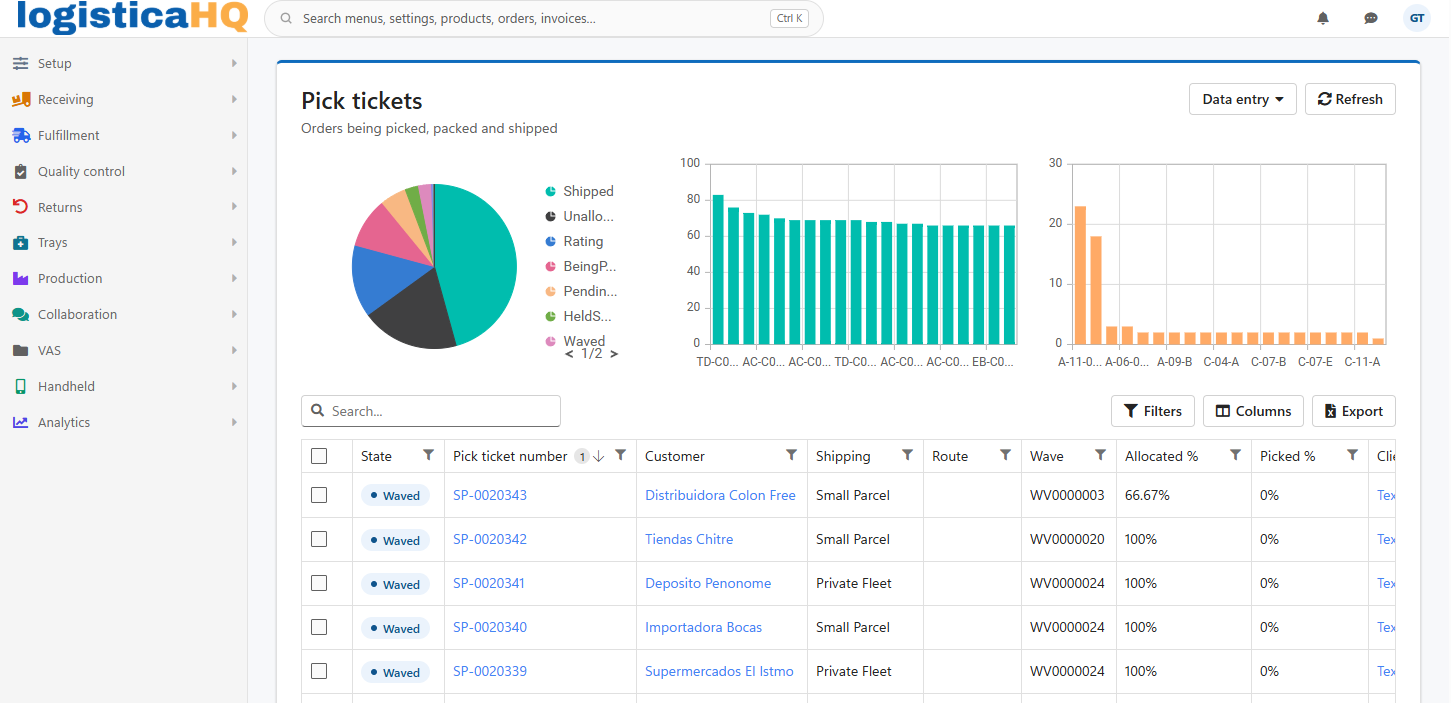
Every LogisticaHQ warehouse has two kinds of users, working on two kinds of devices:
| User | Works on | What they do |
| Office user (web dispatcher) | A computer with a modern web browser | Configures the system, creates and releases orders, plans waves and truck loads, monitors the floor, approves counts and runs reports. Think of the office user as the control tower of the warehouse. |
| Floor user (handheld or PDT user) | An Android mobile computer with a barcode scanner | Carries out the work the office releases: receives purchase orders and returns, puts stock away, picks, packs and ships orders, moves and counts inventory. Every step is confirmed by a scan. |
What each user can see and do is set by their permission profile. See Users and Modules and permission profiles.
The left menu holds every screen, grouped by area of the warehouse. The documentation follows the same order, so the page for a screen sits in the same place as the screen itself:
| Menu | What it covers |
| Setup | System configuration, users, printers and labels, warehouses, zones and bins, 3PL clients and billing, reporting, products and workflows. |
| Receiving | Vendors, the receiving calendar and purchase orders. |
| Fulfillment | Customers, carriers and shipping setup, pick tickets, allocation, waving, totes, the shipping station, truck loads and their history. |
| Quality control | The QC board and hold queue, QC workflows, corrective actions and defect codes. |
| Returns | Customer returns (RMAs), pending and closed. |
| Trays | Surgical trays and kits: trays, tray reports, consumptions, expiry and surgery cases. |
| Production | Production orders, open and closed. |
| Collaboration | User tasks and cycle counts waiting for approval. |
| VAS | The value-added services your warehouse performs for its customers, each with its own screen. |
| Handheld | The handheld screens, also usable from a browser. |
| Analytics | Inventory, cycle count and custom reports and dashboards. |
Click a group to open it, then click a screen. Only the screens your permission profile allows are shown.
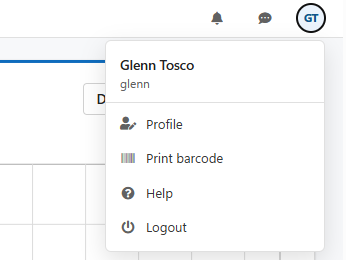
The user menu offers Profile (your own user details, language and password), Print barcode (print any barcode on the spot, for example to relabel a bin), Help (your LogisticaHQ partner's contact details, when your warehouse has a partner) and Logout.
The bottom of the left menu shows the version you are running. Click Release notes to see what changed in each version. When a new version is deployed while you work, LogisticaHQ shows a banner offering to update: click Update now to load it.
Floor users run the LogisticaHQ Handheld app on Android. Any Android device from version 7 (Nougat) onwards works, but a device with a built-in barcode scanner is strongly recommended: LogisticaHQ is validated on Zebra Technologies mobile computers. Install the app from Google Play, or scan the QR code on the LogisticaHQ sign-in page. The Handheld section of this documentation walks through every handheld screen.
New to warehouse terms such as LPN, wave, allocation or cartonization? See the Glossary. For help, contact your LogisticaHQ partner. See Support.
Was this page helpful?